

Insights
Network connectivity: how it works and how to check it
Network connectivity lets devices exchange data. Learn how wired and wireless links work and how to check reachability, DNS and application access.
Network connectivity is the ability of devices to communicate and exchange data across a network using wired or wireless connections. It requires a working connection medium, compatible protocols, and appropriate addressing and network configuration. Being connected to Wi-Fi or Ethernet does not by itself mean you can reach the internet or a particular service.
A connection means you can exchange data
Connectivity describes communication with a destination, not merely a connected-status icon. Your laptop might reach a local printer while internet access is unavailable. In that situation, the connection between the laptop and printer works, even though the path to a remote website does not.
A local connection usually supports communication within the local network; internet access also requires a working path beyond that network when the destination is remote. Devices exchange information through hardware and software using a physical or wireless medium. That connection is part of the path, not proof that every destination is reachable.
When checking connectivity, name both endpoints and the task: “Can this laptop print?” is more useful than “Is the network working?” It separates a working local connection from an unavailable remote destination.
How data reaches another device
A network adapter connects your device to the communication medium, such as a cable or wireless signal. Protocols are the rules devices follow to exchange and interpret data. Network communication carries data in packets, which are smaller units sent toward a destination.
For a simplified webpage request, DNS resolves the website’s hostname into an IP address. The hostname is the readable name, while the IP address identifies a destination for network communication. Addressing and naming identify devices and resources, so a working connection still needs the right destination information.
Switches carry traffic within a local area network, or LAN, such as the network connecting your home devices. Your device’s address and subnet mask help it determine whether the destination is local; the default gateway is the router used to reach other networks. Routers read each packet’s destination IP address and use a routing table to choose where to forward it. A wide area network, or WAN, connects networks across a wider area, and a remote webpage request needs a path beyond your LAN.
The destination service must also accept and handle the request. Reaching the server’s network address does not establish that its website is available or that your account may use it. This distinction matters when one application fails while other traffic works: the problem may be at the service rather than the local connection.
Wired and wireless ways to connect
Network connections can be wired or wireless. Wired connections usually suit fixed devices, while wireless connections suit mobility or situations where avoiding a cable is the priority. The choice concerns the link you need, not a universal ranking of speed or security.
| Connection method | Typical use | Practical limitation |
|---|---|---|
| Ethernet | Fixed local devices connected through copper or fiber | Requires a suitable cable connection and compatible equipment |
| Wi-Fi | Mobile devices accessing a local network | Needs a working wireless link; joining Wi-Fi does not establish internet access |
| Bluetooth | Communication between nearby devices | A nearby-device connection does not itself provide a path to remote services |
| Cellular | Wider-area access for mobile devices | Requires available coverage and an active service connection |
| Satellite | Wider-area access through a satellite connection | Requires suitable equipment and a working service connection |
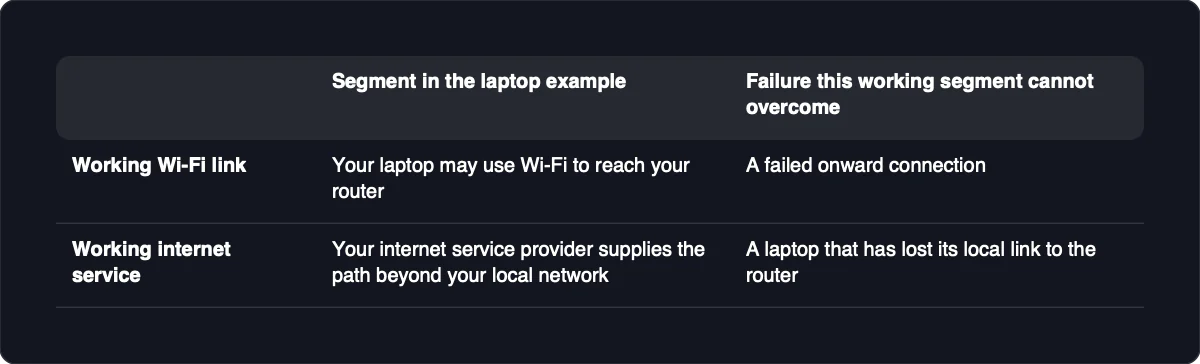
Ethernet, Wi-Fi, Bluetooth, cellular and satellite are all ways to establish network connectivity. They can serve different parts of a communication path rather than replace one another directly.
For example, your laptop may use Wi-Fi to reach your router, while your internet service provider supplies the path beyond your local network. A working Wi-Fi link cannot compensate for a failed onward connection. Equally, working internet service cannot help a laptop that has lost its local link to the router.
Reachability is not the same as performance
Reachability asks whether communication with a destination succeeds. Performance asks how well that communication supports your task. Bandwidth describes capacity for data flow, while latency describes response delay.
Throughput is the transfer rate you actually achieve, which is distinct from the connection’s capacity. Packet loss means some transmitted packets fail to arrive. Tracking packet loss, latency and bandwidth usage helps diagnose network problems, but no single measurement describes every application’s experience.
A file transfer benefits from sustained throughput because the task is to move data. A voice or video call is also sensitive to delay and loss because the conversation needs timely delivery. A connection can therefore transfer files successfully while still making a call feel unreliable.
A ping availability check sends an Internet Control Message Protocol, or ICMP, echo request to a destination. A successful reply establishes only the tested path and response, not that a website, file transfer or call will work well. Test the affected application and assess the measurements against its needs rather than applying a universal acceptable-value threshold.
Check the path one stage at a time
Start with the affected device and destination, then work outward from the local link. Comparing another device or destination helps separate a device-specific problem from a shared network or service problem.
-
Identify what fails. Record the affected device, destination, application and visible error. If another device reaches the same destination, that device’s path works, but yours still needs investigation. If both fail, compare a different destination to see whether the failure is specific to one service or affects broader access.
-
Inspect the local link. Check that the cable is connected or that the device has joined the intended Wi-Fi network. A connected status establishes the reported link state, not internet or application access. If the link is absent, inspect the connection equipment; compare with another authorized device using the same local network.
-
Review addressing in network settings. Check the assigned IP address, subnet mask and default gateway against the network’s intended configuration, because correct IP configuration matters for connectivity. Matching settings remove an obvious configuration mismatch, but values being present does not prove they are correct. Missing or unexpected settings suggest an addressing problem; compare the configuration pattern with a working device without copying its individual address.
-
Check local reachability. Try an approved local destination, such as your router or a known local service. A response shows that the tested local communication works; failure suggests a local-path, destination or filtering issue. Compare another local destination, and remember that an unanswered ping can reflect filtering rather than an outage.
-
Separate external reachability from name resolution. Check an authorized external destination and whether DNS resolves the hostname you need. A successful external check establishes that tested remote path, while a successful lookup establishes name resolution, not service availability. If local checks work but remote checks fail, investigate the onward path; if resolution fails, compare another hostname before treating DNS as the cause.
-
Test the actual application. Open the affected service or repeat the operation that failed. Success establishes that operation works under the current conditions; failure after earlier checks pass shifts attention toward the service, its configuration or its access requirements. Compare the same application on another authorized device, or another service from the affected device.
Review firewall rules and access policies when legitimate traffic appears blocked, rather than disabling protections as a test. A restriction may be intentional. If configuration changes are necessary, obtain authorization, record the original values and arrange a way to restore access before making the change.
Keep private access separate from public reachability
Successful connectivity establishes communication, not confidentiality or permission. A reachable service may still need encrypted transport, identity checks and restrictions on who can use it. Access controls limit permission according to credentials or factors such as device or location.
For a self-hosted service, define which devices or identities should have access before arranging the connection. If an agent needs to use that service, give it the access required for its task rather than assuming every connected participant should be allowed. Retain application authentication and certificate validation, and prefer private access for remote administration instead of exposing it directly to the public internet.
Blocked traffic is a connectivity fault when it prevents intended access; it is the correct result when an access policy excludes the device or service. Verify both outcomes using approved tests: an allowed device or identity should reach the service, and an excluded one should not. If the result differs, check the relevant access policy before changing the network path.
