

Insights
How to Lower Ping in Online Games
Lower gaming ping by testing Ethernet, pausing heavy transfers and comparing game regions. Diagnose lag spikes and know when to contact your ISP.
To lower ping, pause background downloads and uploads, try Ethernet instead of Wi-Fi, and choose the game region with the lowest measured latency. Check your in-game ping before and after each change. If latency spikes when your connection is busy, investigate router queue management; if it stays high on a quiet wired connection, check server distance, ISP routing and game-service issues. Faster internet speeds alone do not guarantee lower ping.
Start with the quickest fixes
Start with changes that are easy to reverse and help separate local problems from distant ones. Record a baseline and change one variable at a time, rather than applying a bundle of “gaming tweaks” whose effects you cannot distinguish.
- Record your in-game ping. Note the selected region, whether you use Wi-Fi or Ethernet, and whether the reading stays steady or jumps. Keep the game's network display visible during your comparisons.
- Pause heavy transfers. Stop launcher downloads, cloud uploads and other large transfers you control. Ask other household users whether they can pause heavy activity briefly.
- Test Ethernet. Connect directly to your router if practical, and confirm your device uses that connection rather than Wi-Fi. Compare the same game region under otherwise similar conditions.
- Compare available game regions. Start with nearby options, then check their displayed latency and stability during play. Keep the region that performs best for your connection, not simply the one with the closest name.
A steadier connection after pausing an upload points toward competition for connection capacity; an improvement on Ethernet points toward your wireless link. Keep useful changes, but move to the next diagnostic when a change makes no clear difference.
Repeat a promising result before making it permanent. Game and network conditions change, so an isolated better match is less useful than a consistent improvement under comparable conditions.
Check whether the problem is actually ping
Ping is the round-trip network delay between your device and a destination. Jitter is variation in that delay, packet loss means some transmitted data does not arrive, and FPS, or frames per second, describes rendering performance rather than network latency.
| Problem | What you may notice | Next useful check |
|---|---|---|
| High ping | Actions take longer to receive a server response, even when movement looks smooth | Compare game regions and quiet wired results |
| Jitter | Response timing changes, with intermittent delay spikes | Compare Wi-Fi with Ethernet and idle with busy conditions |
| Packet loss | Missing updates, interrupted movement or sudden position corrections | Check the game's loss display and compare local connection types |
| Low FPS | Choppy animation or uneven visual performance while network readings remain steady | Investigate rendering performance separately from ping |
Use the game's own ping display as your gaming baseline. Record the region and compare similar play conditions, including whether household traffic is active. Symptoms can overlap, so use the readings alongside what you see rather than diagnosing the cause from stuttering alone.
A speed test can legitimately show a different ping because it usually measures a different server and route. A low speed-test reading does not invalidate high in-game latency, and a high reading does not identify the game's problem by itself.
For example, if the game feels choppy but its ping and loss readings remain stable, investigate rendering rather than stacking network changes. Graphics adjustments may help visual smoothness, but they are not a direct fix for network round-trip delay.
Test Ethernet, then improve Wi-Fi if needed
Ethernet is the useful first local-network comparison in most cases. Wi-Fi signal strength and interference can cause latency problems, while Ethernet provides a direct connection to your router; the comparison helps reveal whether wireless conditions are contributing.
- Keep the game region unchanged. Avoid comparing a wireless match in one region with a wired match in another.
- Connect directly to the router. Confirm Ethernet is the active connection. If necessary, temporarily disconnect Wi-Fi for the test, then restore your preferred connection afterward.
- Compare both average delay and spikes. A similar average with fewer spikes is still a useful result. Check packet loss too, if the game displays it.
- Follow the result. If Ethernet removes the problem, focus on Wi-Fi placement and interference. If it does not, continue to background-traffic and route checks before buying equipment.
Without an Ethernet option, move your device closer to the router and repeat the comparison. Improvement there makes wireless signal conditions a useful area to investigate, although this test does not isolate Wi-Fi as cleanly as a wired comparison.
Compare available Wi-Fi bands rather than assuming the higher-frequency option always wins. The 5 GHz band can face less interference than 2.4 GHz, but its shorter range makes it better suited to nearby devices. Try both from your actual gaming location, and keep the band that gives steadier results there.
Reduce lag spikes when your connection is busy
Latency that rises during downloads or uploads points toward competition for connection capacity and queueing under load. Background updates and cloud backups can create latency spikes, even when you did not deliberately start a transfer.
- Compare quiet and busy conditions. Outside an active match, observe latency while the connection is quiet, then during an ordinary download or upload. Keep the destination and connection type unchanged.
- Pause likely contributors. Check cloud backups, launcher downloads and transfers on other devices. Coordinate with household users rather than disconnecting their devices without warning.
- Look for queue-management controls. If busy conditions repeatedly cause spikes, consult your router's documentation for Smart Queue Management or QoS, meaning Quality of Service.
- Change settings safely. Only administer a router you are authorized to manage. Save the existing settings, follow instructions for your router and connection, and revert if latency, stability or throughput worsens.
- Resume paused transfers. Once testing is complete, restart backups and updates. Schedule heavy transfers away from gaming if pausing them consistently helps.
Bufferbloat is excessive queueing under load: game traffic waits behind other traffic instead of moving promptly through the connection. Queue management aims to control that waiting. Simply labeling gaming traffic “high priority” is not the same as controlling queue buildup, and router controls vary enough that a universal setting is not appropriate.
The number of connected devices alone does not establish congestion. Several idle devices may matter less than one active upload, so test actual traffic rather than removing devices at random.
More bandwidth can reduce competition when capacity is limited, but raw speed does not directly determine ping. Consider additional capacity only when your normal traffic repeatedly overwhelms the connection, not because your quiet-connection ping looks high.
Choose a game region by measured latency
Nearby game regions usually offer lower latency, but a slightly farther region can perform better when the nearby server is congested. Geography is a useful starting point, not a substitute for measuring your actual connection.
- Compare nearby regions first. Use the game's region selector or latency display where available. Note which region it selects automatically.
- Check stability during play. Compare actual in-game ping, spikes and loss, not just a single matchmaking estimate.
- Confirm the party's region. When playing with distant friends, check which region the party uses. A region suitable for another player may be farther from you.
- Check service status for isolated problems. If only one game or region performs badly, consult that game's service-status information before changing your whole network.
For example, a nearby region might give the best results when quiet but become less stable during busy periods. If another available region consistently performs better under comparable conditions, use that result to guide your choice.
Keep the comparison fair by leaving your local connection and background traffic unchanged. Otherwise, a region change and a paused download can look like one improvement even though you do not know which mattered.
The in-game display reflects your live connection to that specific server, so check it again after joining. A region label alone does not tell you how the current match will perform.
Test alternate routes without weakening security
An alternate route is an optional experiment after local fixes, not a guaranteed ping reduction. A tunnel can improve or worsen latency because it changes the route and can add extra routing.
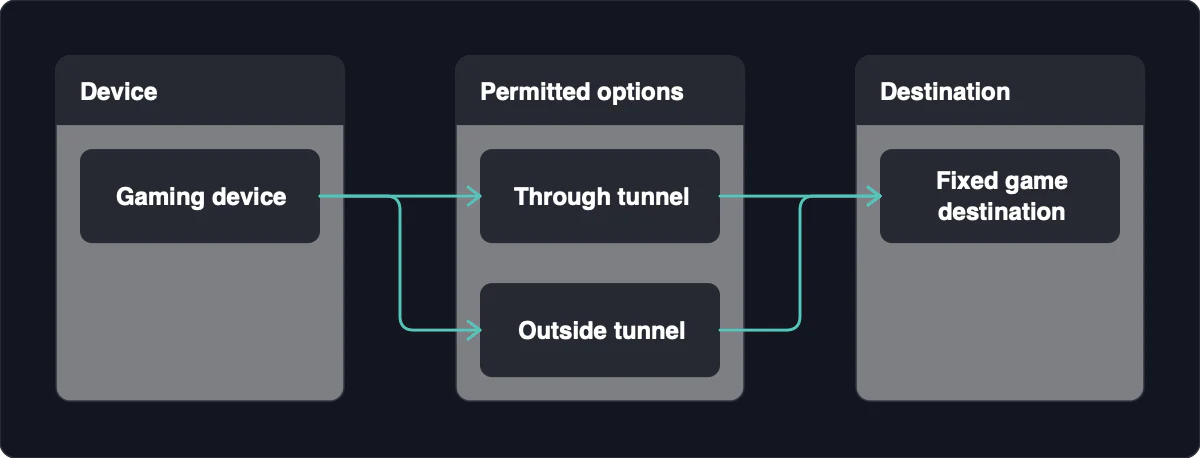
- Keep the destination fixed. Compare the same game region with similar background traffic. Changing both the route and region makes the result difficult to interpret.
- Use permitted configurations. If you already use a privacy tunnel, compare routing options allowed by its controls and any organizational policy. Do not defeat a required kill switch to run the test.
- Understand a bypass before using it. Split tunneling can send selected traffic outside the tunnel. That means game traffic may leave outside your chosen privacy path.
- Keep security protections enabled. Do not disable firewalls or certificate validation, or open ports merely to try to lower ping.
- Restore the original configuration if results worsen. Keep an alternate route only if repeated comparisons show a useful improvement and its privacy tradeoff is acceptable.
A different route may help, but results are connection-specific. Better results through a tunnel suggest that the changed path may suit that destination better; they do not prove your ISP is throttling game traffic.
If bypassing the tunnel conflicts with a kill switch, required privacy controls or organizational policy, leave those protections in place. Continue with region comparisons and connection diagnostics instead of weakening security for an uncertain performance benefit.
Know when the fix is outside your home
High ping that persists on a quiet wired connection shifts attention toward server distance, routing, congestion or game-service conditions. Your ISP may need to investigate connection problems or outages outside your control.
- Repeat quiet wired tests at different times. Keep the game region fixed and note whether the issue is persistent or follows a time-of-day pattern.
- Check game-service notices. A problem confined to one game or region is a reason to investigate that service before replacing home equipment.
- Prepare a useful support report. Include the game and region, timestamps, in-game latency, observed packet loss, connection type and changes already tried. Note which comparisons improved the result and which did not.
- Contact the appropriate support team. Ask game support about game-specific issues and your ISP about persistent connection problems. Describe the pattern rather than declaring a cause you have not isolated.
Evening-only problems suggest a congestion pattern, but they do not prove throttling or identify where the congestion occurs. Likewise, a speed-test result is only a rough baseline for gaming because it measures another destination.
Replace equipment only when comparisons point to a local bottleneck, and consider a plan change when normal traffic exceeds available capacity. Neither purchase is a reliable answer to unexplained high idle ping.
Distance and network routes constrain round-trip delay. More Mbps can provide room for simultaneous traffic, but it cannot by itself promise a shorter trip between your device and the game server.
