

Insights
How to Fix Slow DNS Lookup
Measure DNS lookup delays on Windows, macOS and Linux, identify the slow layer, apply a targeted fix, and retest without breaking private access.

To fix slow DNS lookup, first confirm that name resolution is causing the delay. Repeat the same hostname query through your current resolver and an approved alternative, then fix the layer the comparison identifies: stale local answers, browser DNS overrides, unreachable configured servers, router forwarding, or the domain’s authoritative DNS. Change one setting at a time and repeat the original tests. Restore your previous configuration if the change does not help or breaks internal names.
Start with a measured, reversible fix
DNS translates a hostname into the address an application needs to connect. A pause before a page loads can happen during that lookup, but it can also happen while establishing the connection or waiting for the server.
Use this sequence rather than starting with a cache flush or a provider switch:
- Confirm DNS timing. Inspect the affected request, then run a separate hostname lookup.
- Compare repeated queries. Keep the hostname, record type and connection unchanged while testing your current resolver and an approved alternative.
- Locate the affected layer. Compare browsers, devices and, where authorized, another network.
- Make one matching change. Correct the browser setting, stale local answer, resolver configuration or router issue indicated by the comparison.
- Retest and recover. Check both public websites and legitimate private services. Restore the previous configuration if performance worsens or internal names stop resolving.
Save the original settings before changing them. If several devices are affected, focus on their shared router or resolver rather than clearing every device’s cache.
Separate DNS delay from connection and server delay
The browser’s request timing tells you which phase needs attention. A large DNS lookup phase alongside normal connection and response phases identifies DNS as part of the delay.
- Inspect the affected request. Open your browser’s developer tools and its Network tab, reload the page, and select the first document request. Separate DNS lookup, initial connection, TLS negotiation and server response time. If DNS timing is normal, investigate the slow connection, TLS or response phase instead.
- Run a DNS-only comparison. Use the commands below for your operating system. These read-only tests normally need no administrator rights and make no settings changes to undo; query only permitted destinations and resolvers.
- Keep the answers and errors. Record the hostname, resolver, returned addresses, elapsed time and any timeout. Repeat during the slowdown rather than treating one result as a diagnosis.
Windows PowerShell
This measures a DNS-only query through the configured resolver, then an approved alternative. Enter the same hostname for both tests.
$hostname = Read-Host "Permitted public hostname"
$baseline = Measure-Command {
    Resolve-DnsName -Name $hostname -Type A -DnsOnly | Out-Host
}
$baseline.TotalMilliseconds

$resolver = Read-Host "Approved resolver address"
$comparison = Measure-Command {
    Resolve-DnsName -Name $hostname -Type A -DnsOnly -Server $resolver | Out-Host
}
$comparison.TotalMilliseconds
The displayed elapsed time includes command execution overhead, so use it for consistent comparisons rather than as a packet-level measurement. Preserve the displayed answers or errors as well as the time.
macOS and Linux
Use dig if it is installed. Replace HOSTNAME and RESOLVER_ADDRESS with the permitted hostname and approved resolver address:
dig HOSTNAME A
dig @RESOLVER_ADDRESS HOSTNAME A
Compare the answer, status and query time. dig does not necessarily follow browser Secure DNS settings or the operating system’s complete name-service path, so a fast result does not rule out an application-specific problem.
Keep IPv4 address queries, A, separate from IPv6 address queries, AAAA. The first query is not necessarily uncached, especially at a public resolver, and clearing your device’s cache does not clear upstream caches. Ping’s elapsed time is not DNS timing, and visiting an HTTPS site by IP address is not a substitute for this comparison.
Use the pattern of failures to choose your next step
The scope of the slowdown narrows the likely cause. Compare another browser, another device and another authorized connection before changing settings; each comparison narrows the investigation rather than proving a cause conclusively.
| Symptom | Comparison test | Next action |
|---|---|---|
| Only one browser stalls | Open the same site in another browser on the same device | Inspect Secure DNS, extensions and proxy settings |
| Only one device struggles | Test another device on the same network | Inspect device DNS settings, tunnel configuration and active interfaces |
| All devices on the network struggle | Compare wired and wireless connections, then another authorized network | Investigate the router, upstream resolver and shared network path |
| One domain stays slow across networks | Query the same record through multiple permitted resolvers | Investigate authoritative nameservers and alias chains |
| A pause ends in eventual success | Inspect configured DNS servers and test each permitted server | Look for unreachable resolvers, timeouts or packet loss |
| Repeat queries become faster | Repeat the same hostname and record type | Account for caching before attributing the improvement to a setting |
The browser, device and network comparison determines where to look next. For example, a working browser on the same device points toward browser-specific settings, while several affected devices point toward something shared.
A faster repeat commonly reflects a cache hit somewhere along the resolution path, not necessarily on your device. When several resolvers slow down together, investigate the shared network path; when an alternative repeatedly performs better under comparable conditions, investigate the configured resolver or its forwarding path.
Correct stale local answers and browser-only problems
Browser-only stalls call for browser checks before system-wide changes. Local cache clearing is useful after a stale answer or corrected configuration, but it should be a targeted, one-time action, not routine optimization.
- Compare browser settings. Check Secure DNS, extensions and proxy settings against a working browser. A browser DNS override may use a different resolver from your operating system. Record each original setting before testing a change, and restore it if the change does not help.
- Clear a justified local cache. Use the applicable command below only on a device you administer, with authorization for administrator or
sudoaccess. - Restart the browser and retest. Query the original hostname and retry the affected page. If only the browser still stalls, return to its configuration rather than repeatedly flushing the system cache.
Windows
Run Command Prompt or PowerShell as administrator:
ipconfig /flushdns
macOS
Run these commands in Terminal with authorized sudo access:
sudo dscacheutil -flushcache
sudo killall -HUP mDNSResponder
macOS may give no success message. Retest the lookup rather than treating silence as failure.
Linux using systemd-resolved
If your system uses systemd-resolved, run:
sudo resolvectl flush-caches
These commands remove cached answers; they do not repair a persistently slow upstream resolver. Caches repopulate automatically and have no undo command, while repeated flushing sacrifices their benefit.
For advanced Linux troubleshooting, fast direct DNS replies with slow application resolution justify inspecting the Name Service Switch, or NSS, and multicast DNS configuration. Review your distribution’s intended name-service path rather than applying a historical configuration edit universally.
Repair unreachable resolvers and router forwarding
An unexpected or unreachable DNS server can cause a pause before another lookup succeeds. Inspect every configured server on every active interface, including virtual interfaces, rather than assuming the visible primary setting tells the whole story.
-
Inspect the current configuration. These read-only commands normally need no administrator rights:
- Windows PowerShell:
Get-DnsClientServerAddress. Alternatively, useipconfig /all. - macOS Terminal:
scutil --dns. - Linux with systemd-resolved:
resolvectl status.
A local stub address points to a resolver service on your device, not necessarily the upstream server. DNS settings may come from DHCP, a network manager or a tunnel, so correct them through the system that manages them.
- Windows PowerShell:
-
Test permitted servers individually. Use the same hostname and record type from the earlier tests. Do not assume every listed server is reachable or that applications use them strictly in the displayed order.
-
Trial an approved alternative on one device. Save the original addresses or note automatic assignment before changing settings. Keep a provider’s primary and secondary addresses together so their filtering policies remain consistent. Restore the recorded values or automatic assignment if the trial fails.
-
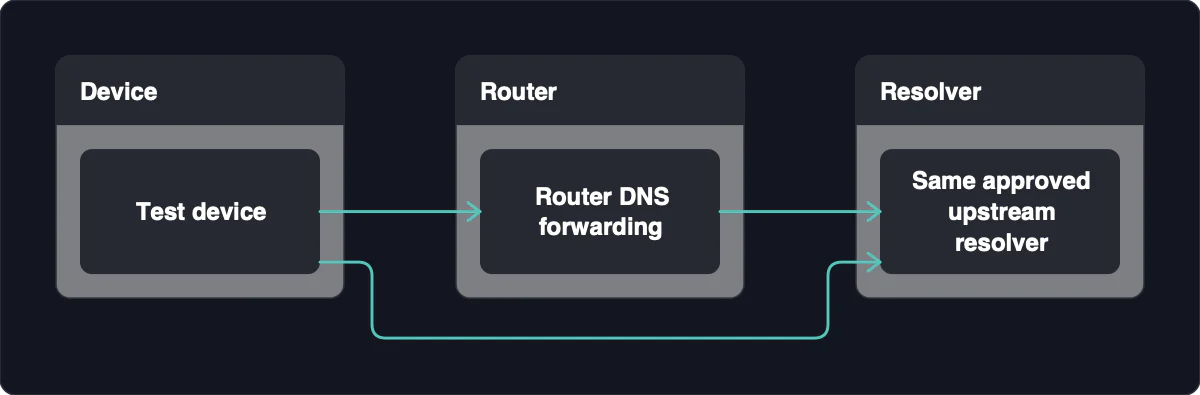
Check router forwarding when the problem is shared. Where policy permits, compare queries through the router with direct queries to the same upstream resolver. A difference narrows the issue to the forwarding path rather than comparing unrelated providers.
Restart only a router you administer, and warn other users that connections will be interrupted. If the problem returns, review firmware and DHCP DNS configuration rather than starting with a factory reset or blanket network reset. After changing DHCP DNS, renew leases or reconnect clients so they receive the new settings.
Keep private names and DNS protections working
Public-resolver comparisons suit permitted public names; private names need their intended DNS route. A public resolver may not know an internal zone, so replacing DNS globally can make a private service unreachable even when public sites become faster.
- Choose a non-sensitive public hostname. Do not send internal service names to an external resolver just to measure speed. Test legitimate private-service access separately through its intended route.
- Inspect overlapping DNS controls. Check browser encrypted-DNS overrides, tunnel-supplied DNS, split DNS, filtering and stale virtual-interface settings. Split DNS sends different names to different resolvers, so a global replacement can remove routing that private access needs.
- Separate tunnel effects only when authorized. For a public site that does not require the tunnel, compare with the tunnel disconnected where policy allows. Do this only when it will not expose sensitive activity, and do not disable interfaces needed for managed access.
- Keep protections active. Leave firewall and DNS-rebinding protections enabled. Use logs or an administrator-approved, narrowly scoped change when a legitimate internal domain needs an exception.
Encrypted DNS describes how DNS traffic is transported, not whether a resolver is faster. Judge latency from comparable measurements, and restore the intended browser, tunnel and DNS routing configuration after testing. A faster public lookup is not a successful fix if it breaks private access or bypasses required filtering.
Investigate authoritative DNS when one domain stays slow
A domain that remains slow through multiple resolvers and networks points toward its own DNS configuration. Recursive resolvers fetch and cache answers for clients; authoritative nameservers publish the domain’s records, so these are different parts of the lookup path.
- Confirm the domain-specific pattern. Compare the same record type through multiple permitted recursive resolvers. If other domains resolve normally, check the affected domain’s authoritative nameservers.
- Inspect delegation and authoritative replies. On macOS or Linux with
diginstalled, the read-only commands below normally need no administrator rights. Replace the placeholders and use them only where direct DNS traffic is permitted. - Act according to ownership. If you administer the domain, inspect nameserver availability, delegation and unnecessary alias chains. Otherwise, send reproducible results to the domain operator.
dig ZONE NS
dig @AUTHORITATIVE_SERVER HOSTNAME A +norecurse
dig HOSTNAME A +trace
ZONE is the relevant DNS zone, and AUTHORITATIVE_SERVER is one of its nameservers. The direct query asks that server for an answer without requesting recursion; an authoritative server does not provide the same general recursive service as your usual resolver. A delegation trace follows the lookup path, but restricted direct DNS traffic can prevent it from completing.
For a slow domain, a delegation trace can help investigate authoritative servers or a CNAME alias chain. Review TTL choices against how often records change: TTL controls DNS record caching, not cached page-content freshness, and is not a universal speed setting.
If DNS replies are prompt but the browser shows slow TLS or initial connection timing, move the investigation to that phase. Changing DNS records is not a remedy for a delay elsewhere.
Verify the improvement and keep a recovery path
A successful fix improves the original symptom while preserving correct answers and required access. Faster timing alone is insufficient if lookups fail, return unsuitable answers or stop resolving private services.
- Repeat the original comparison. Use the same domains, record types, connection and timing method after the single change. Keep several timings and failures, not just the fastest result.
- Check actual behavior. Retry the affected browser or application and legitimate private services. Confirm that answers are expected, errors have not increased and the original pause has improved.
- Keep a compact before-and-after record.
| Item | Before | After |
|---|---|---|
| Resolver and connection | Original addresses or automatic assignment, active connection | The single setting changed |
| Same hostnames and record types | Typical timings, answers and failures | Repeated timings, answers and failures |
| Original symptom | Where the application pauses | Whether that pause improves |
| Private access | Required services resolve and connect | Access still works as intended |
- Restore or escalate. Restore recorded DNS settings and any changed browser or tunnel configuration if results worsen. Direct the problem to the device administrator, router administrator, internet provider, resolver operator or domain operator according to the isolated layer.
For escalation, include timestamps, resolver identity, the relevant public hostname, returned results or errors, and the scope of affected devices. State whether the slowdown occurs in DNS timing or a later connection phase, and which comparisons reproduce it. Redact private names and sensitive logs before sharing.
